In the iPhone app, you can take a payment at the job or send the invoice so the customer pays online. Team members collect payment on jobs they're assigned to. Owners and admins can collect on any job.
Taking a payment needs an internet connection. When you're offline, the payment options are turned off.
Take or record a payment
- Open the job.
- Tap the collect button at the bottom of the screen. Team members see Collect payment. Owners and admins see the amount on the button, for example Collect $250.00 or Collect deposit · $250.00. You can also tap the More button (three dots) and choose Record a payment.
- Choose the amount: Full balance, or Other amount to type one.
- Choose how the customer is paying:
- Card reader
- Take a card with a Bluetooth card reader. This option shows when your business has connected Stripe.
- Cash
- Record cash you received.
- Check
- Record a check. You can add the check number next.
- Bank transfer or other
- Record a payment you already have.
- For cash, check, or other, tap the Record button to save it.
If no invoice is open on the job, the payment is saved as a deposit toward the next invoice.
Send a receipt
When you record cash, a check, or another payment, Rollout doesn't send a receipt on its own. On the Payment Collected screen, tap Receipt to email one.
When a customer pays by card, Rollout emails a receipt after Stripe confirms the payment.
Send the invoice so the customer pays online
Owners and admins can send the invoice from the phone. The invoice email has a link where the customer pays online.
- Open the job and tap Send invoice.
- Under Send by, turn on Email.
- Add a message if you like, then tap Send invoice.
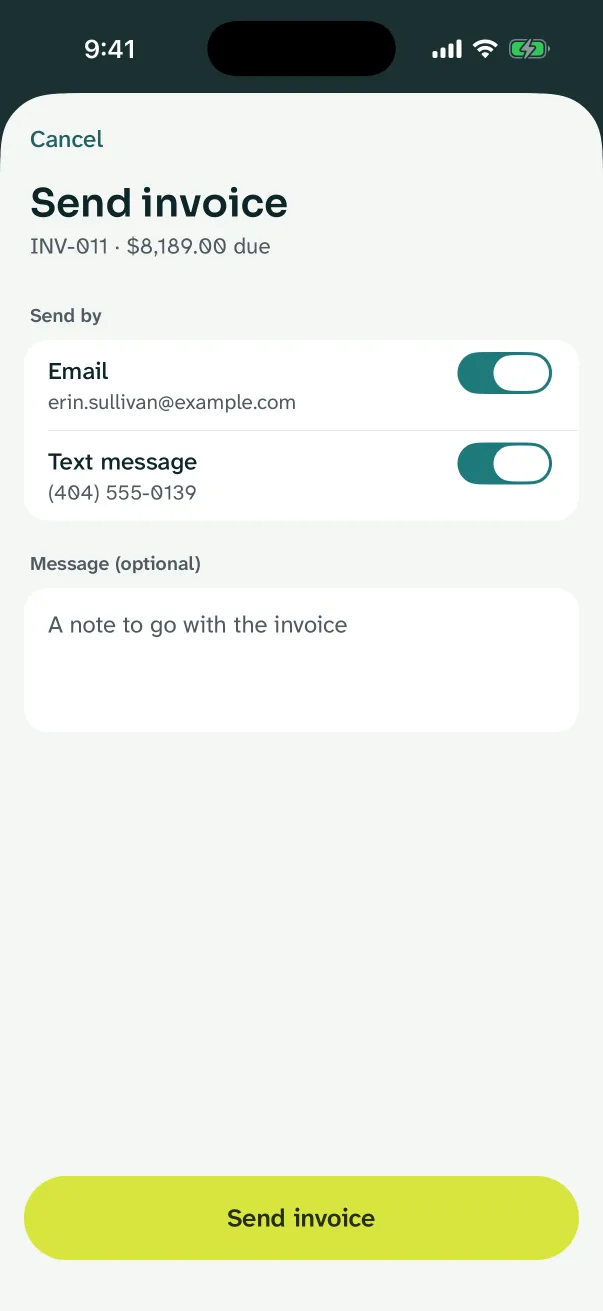
The Send invoice sheet in the iPhone app.