On this page
The iPhone app can start your timer when you arrive at a job. When you leave, it asks if you're done. It doesn't stop the timer on its own when you drive away, so a quick run for parts doesn't end your time on the job.
Before you start
When Rollout asks for your location, allow it Always. The app walks you through it: tap Allow While Using App, then Change to Always Allow.
If you skip this, you can still start and stop the timer yourself, and turn it on later in the app's settings.
When you arrive
When you pull up to a job that has a visit assigned to you today, Rollout checks your location and starts the timer. You get a Timer started notification with View job and Stop timer buttons. The job shows Started on arrival and the time.
That's the Start on arrival mode, which new businesses start with. In Remind mode, Rollout asks first: tap Start timer or Dismiss.
If you're at an open job with no visit for you today, Rollout never starts a timer by itself. It asks instead: tap Start timer to start one, or Not now. Owners and admins get asked at any open job. Team members get asked only at jobs they're on.
If the app is in the background, you get a notification, for example You're at Dana Whitaker. Start a timer for Water heater check? Tap Start timer or Dismiss. If more than one job is open there, tap Choose a job to pick one. You get at most one of these a day for each job, and none for the job your timer is already running on.
Back at the same job later today
If you come back to a job a second time the same day, Rollout asks first. You get a notification that asks start your timer? Tap Start timer to start it, or Dismiss.
When you leave
A few minutes after you leave the job site, Rollout asks if you're done. The notification says Your timer is still running. Stop it?
- Tap Stop timer to stop it.
- Tap Keep running if you're coming back, for example after a run to the supply house.
Rollout doesn't stop the timer until you tell it to.
When you tap Complete visit, Rollout stops your timer on that job.
Start and stop the timer yourself
- On a job
- Tap Timer at the bottom of the job to start it. While it runs, the button reads Stop timer.
- From the tab bar
- Tap the timer in the tab bar. Pick the job you're on to start the clock, or tap Stop the timer.
- On the lock screen
- While the timer runs, it shows on your lock screen. Tap Stop timer to stop it.
Starting and stopping the timer yourself works offline. Rollout syncs your time when you're back online.
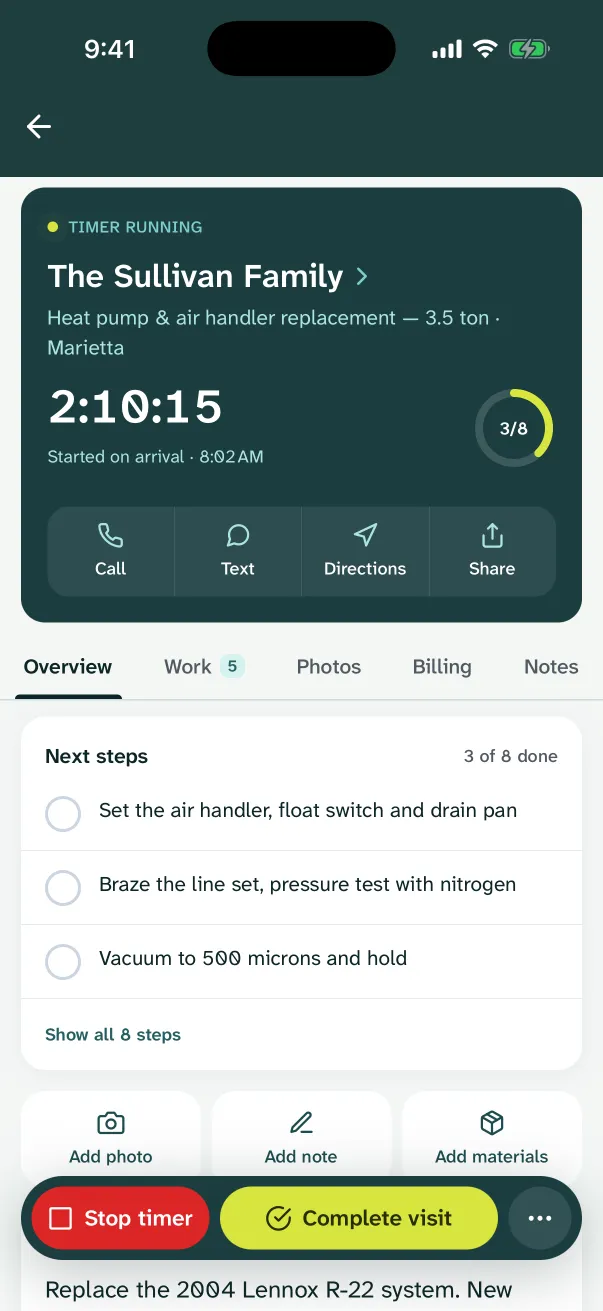
A job with the timer running. Stop timer is at the bottom.
Choose the timer mode
Owners and admins choose how the timer works for the whole business.
- On the web, go to Settings > Field operations.
- Under Arrival timers, choose a mode:
- Start on arrival
- The timer starts when someone arrives. When they leave, Rollout asks if they're done.
- Remind
- Rollout sends a notification when someone arrives or leaves, and they decide whether to start or stop the timer.
- Off
- Team members start and stop the timer themselves.
- Optional: Turn Only for people on the job on or off. When it's on, the timer starts by itself only for people on the job, and everyone else gets asked. It's on for new businesses.
- Click Save changes.
To fix a time after the fact, see Timesheets.